
Payment Methods
The Payment Methods section allows you to view, add, and manage saved payment cards.
Navigate to the EZ Extension interface at EZ Extension - Payment Methods to access the payment methods.
To view the payment methods, perform the following steps:
1. Login to the EZ Extension application.
2. On the dashboard page, click the  User Profile in the top right corner of the page, and then select
  Payment Methods.
User Profile in the top right corner of the page, and then select Payment Methods.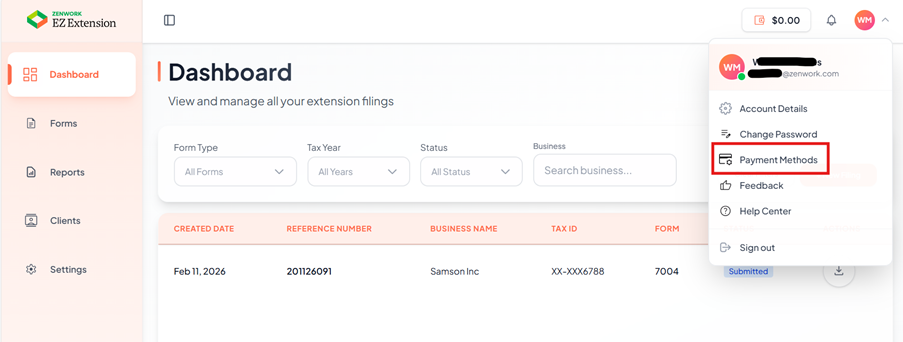
The Account Settings page appears under Payment Methods section, allows users to view, add, and remove saved payment cards for future transactions.
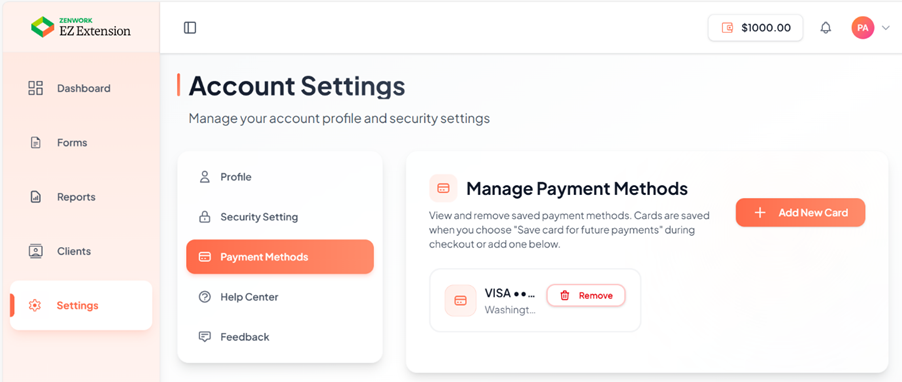
3. Click Add New Card to add a new card.
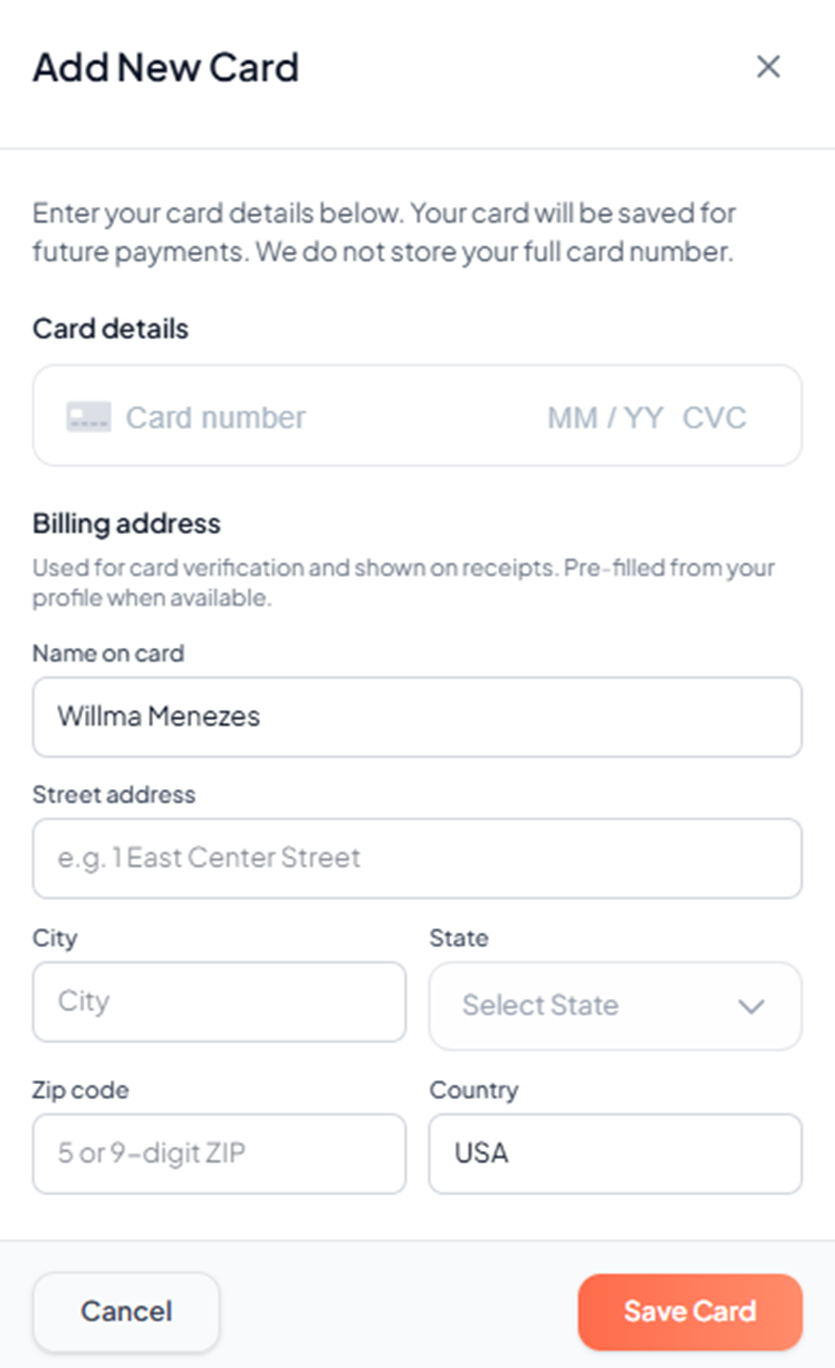
4. Enter the card number in the Card Number box.
5. Enter the Expiry Date and CVV number in the respective boxes.
6. Enter the name on the card in the Name on Card box.
7. Enter the email address in the Email Address box.
8. Enter the address in the Street Address box.
9. Enter the City, State, ZIP Code, & Country in the respective boxes.
10. Click Save Card to save the card details.
The newly added card is added to the saved cards.