
Change Password
Navigate to the EZ Extension interface at EZ Extension - Security Settings to access the account details.
To make the account details, perform the following steps:
1. Login to the EZ Extension application.
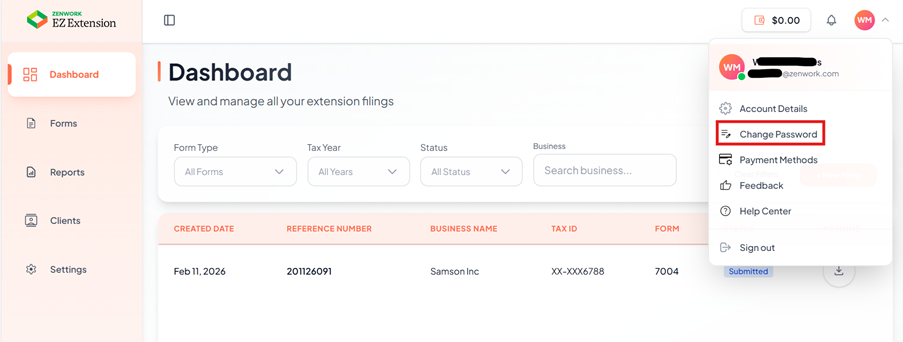
2. On the dashboard page, click the  User Profile in the top right corner of the page, and then select
  Change Password.
User Profile in the top right corner of the page, and then select Change Password.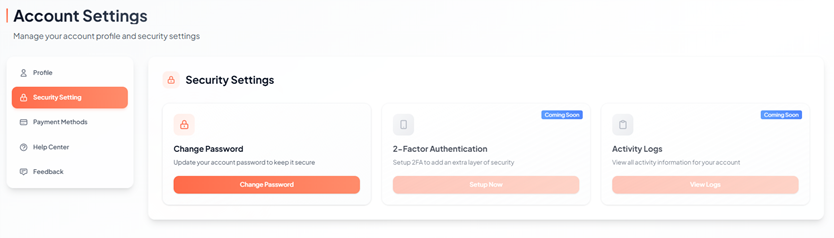
The Account Settings page appears under Security Setting section, allows you to manage your account security options such as:
· Change Password
· 2-Factor Authentication (Coming Soon)
· Activity Logs (Coming Soon)
3. Click Change Password, the change password page appears.
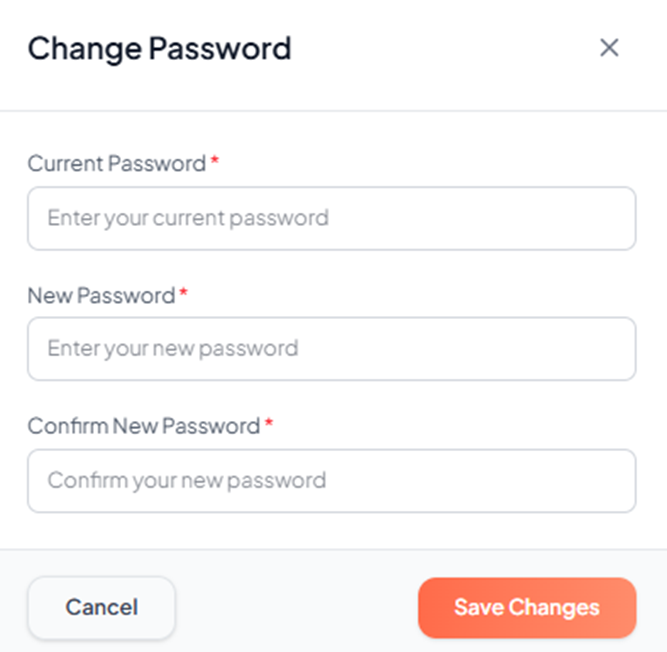
4. Enter the current password in the Current Password box.
5. Enter the new password in the New Password box.
6. Re-enter the new password in the Confirm New Password box to confirm.
7. Click Save Changes to update the password.
The password is changed successfully.